

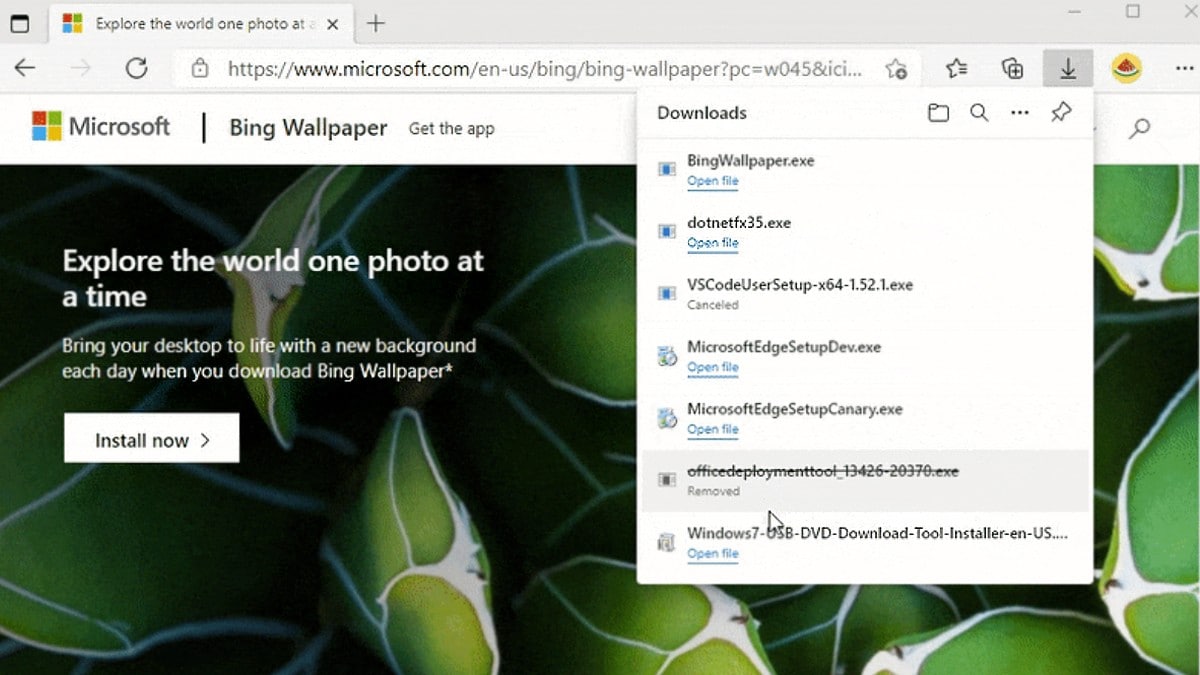

Microsoft is introducing a new downloads interface for Edge. A new section will appear in the top-right corner of the browser that will show all active downloads. It takes less screen space and can be dismissed easily. The button of the new downloads section has a progress ring, allowing users to monitor the overall download progress from the toolbar itself. It will also be possible for users to switch back to the other view.
The new menu for downloads is already available in the Canary and Dev channels, as announced by a Microsoft executive via a tech community blog post.
As per the post, users had criticised the current downloads experience on Microsoft Edge, since it is sometimes hard to notice new downloads in the tray located at the bottom of the window. Also, if you closed the tray to make more space, you could no longer monitor your download progress. The new download menu will rectify that.
When you start a new download, a new button will appear in the top-right corner of Microsoft Edge with all active downloads in one place. You can dismiss it and click on the downloads button to view all the downloads again if you wish to do so. By hovering over or right-clicking on files in the list, you can pause, restart, or cancel a download in progress.
You can click on See more to view and manage past downloads on Microsoft Edge. The progress ring on the downloads button will show the status of the downloads. The downloads menu option can also be pinned open, enabling users to monitor downloads in detail while browsing.
Microsoft’s blog post further explained that the downloads button will remain in the toolbar till all the downloads have finished. After this, the progress ring will change into a green checkmark. You can open the menu to view the finished downloads and hide the button again.
If you haven’t downloaded a file recently but want to check out the new menu, head to Settings > More menu on Microsoft Edge. Users can revert to the old downloads view by selecting Manage downloads in the downloads menu or by heading to edge://downloads.
Does WhatsApp’s new privacy policy spell the end for your privacy? We discussed this on Orbital, our weekly technology podcast, which you can subscribe to via Apple Podcasts, Google Podcasts, or RSS, download the episode, or just hit the play button below.
